
Functional capabilities Integrated company management system Business Navigator
Business Navigator includes the following functional areas of company activity:
1. Trade management
Trade management
Business Navigator allows the processing of the entire document flow of trading companies, servicing relationships with customers and suppliers, with their dealers and partners. All movements by items are reported, as well as stocks by shopping centers, warehouses, consignors and materially responsible persons. Goods are automatically written off using the FIFO, LIFO or weighted average price methods. Customer order fulfillment is monitored, and payment tracking functions reflect the execution of transactions. Automated reminder letters are sent to overdue clients.
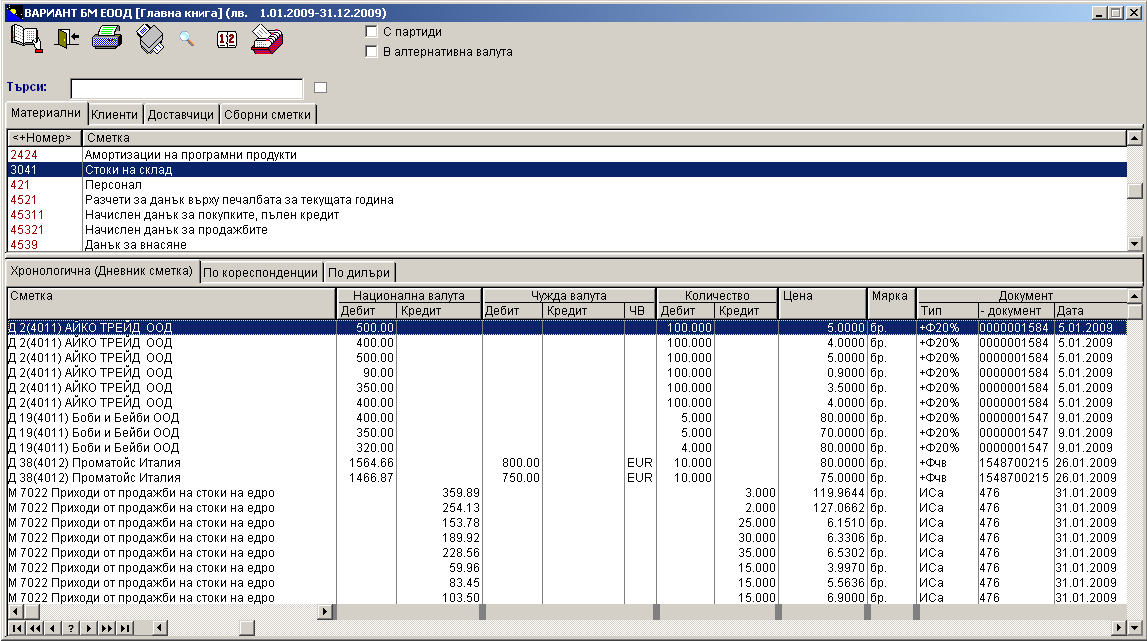
Business Navigator allows you to keep track of the stocks of goods, materials and production as well as sales in an unlimited number of warehouses, to invoice and report consignments. Upon receiving goods and materials, indirect costs - such as customs duties, transport, and insurance - can be included in their valuation. Transfers between warehouses or consignments generate printed stock transfer slips
Business Navigator includes additional functions for processing requests to suppliers. Requests can be created freely at the user's request or tied to orders to the company from its customers.
Sold items are automatically issued up to the available quantity. However, inventory reports can be generated even before issuing is completed. Year-end revaluation of inventory is also handled automatically.
The reports are rich and detailed. You can see a complete chronology of the movement of goods for any period of time, from the very beginning of working with the program. Within the selected period, interval of periods or year, you can call up a report on the movements for an arbitrarily set interval from date to date. You can see this movement for each product by customers, suppliers or consignors, both summarized and in full detail, including quantities, prices, discounts given and excise duties charged. You can view it on the other side, for each customer by type of goods.
Business Navigator includes support for a device for reading barcode labels on goods. Devices that are installed on the computer keyboard must be used. For this purpose, changes have been made to the document entry screen so that filling out invoices can be done quickly and easily by simply reading barcode labels, with almost no operator intervention. The information from the barcode reader enters the program as if it had been entered from the keyboard.
To use these features, you must make settings for the types of barcodes you use and the types of documents with which the invoicing and sale of the labeled goods will be carried out.
You must also enter the barcodes of each item in the item nomenclature according to the standard you have chosen
Items and Item Categories
Business Navigator allows for flexible setup of item and item category structures. Basic concepts when working with items are as follows:
Nomenclature definition
Nomenclatures are another term for a list that is used to enter goods or other items for reporting on analytical objects. Lists enable analytical reporting of individual items in Business Navigator.
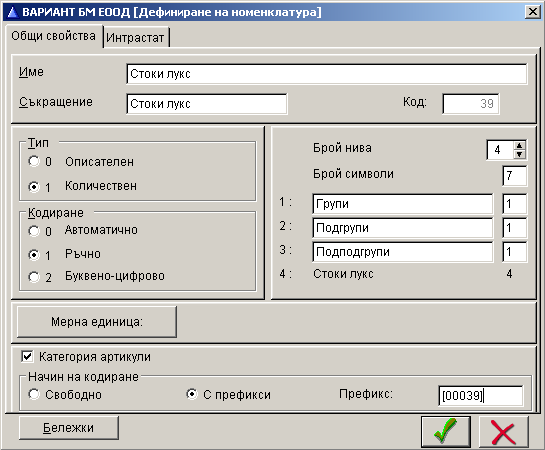
Business Navigator supports a flexible multi-level item classification system with four levels of hierarchy: groups, subgroups, second-level subgroups, and items (positions). The item catalog can be configured dynamically, allowing you to:
- Combine up to 3 nomenclatures in multidimensional analytics (e.g. consignment goods by type of goods and by consignor, production costs by type of product and by type of cost, etc.).
- Set bill of materials for product production.
- Set units of measure for reporting each item separately and alternative units of measure, the program converts to with a single mouse click. In specific cases, two quantities can be reported (e.g. weight and humidity, volume and alcohol content, etc.).
Item category
The item category expands on the concept of nomenclature and nomenclature definition. Item categories enable the simultaneous processing of goods from different nomenclatures, thus providing an overview of goods movements and inventories, regardless of their posting by accounts and batches. This flexibility allows warehouse employees to work with items that are then automatically entered into the accounting accounts upon posting.
Items
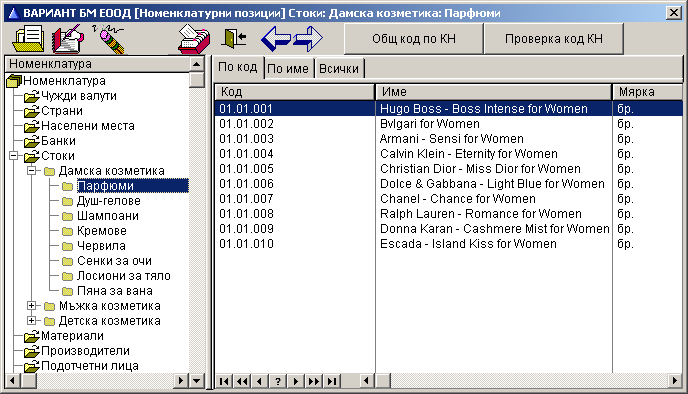
Unlike catalog entries, which are coded strictly within their respective catalog (list or definition), items in Business Navigator use a unified coding system across all categories. This allows them to be managed from a single consolidated list.
Item coding supports the introduction of two additional identifiers within each catalog entry: an item code and a barcode
The item code can be assigned in two ways: freely or with a prefix.
- In free coding, you can define any sequence of characters from 1 to 30 symbols. This method is used when importing externally defined item tables with fixed codes.
- In prefix-based coding, the system automatically generates the item code by combining the category prefix with the catalog entry code. This method is recommended for streamlined setup. You can later modify the prefix as needed. The maximum prefix length is 10 characters.
The Recode function, available at the catalog entry level and higher levels (groups, subgroups, etc.), automatically updates item codes across the structure. Thanks to this flexible catalog and item definition system, real-time stock levels per item can be tracked and displayed at the moment of entering purchase or sales documents
Invoicing
The integrated business management system Business Navigator facilitates invoicing for sales through flexible options for processing primary documents.
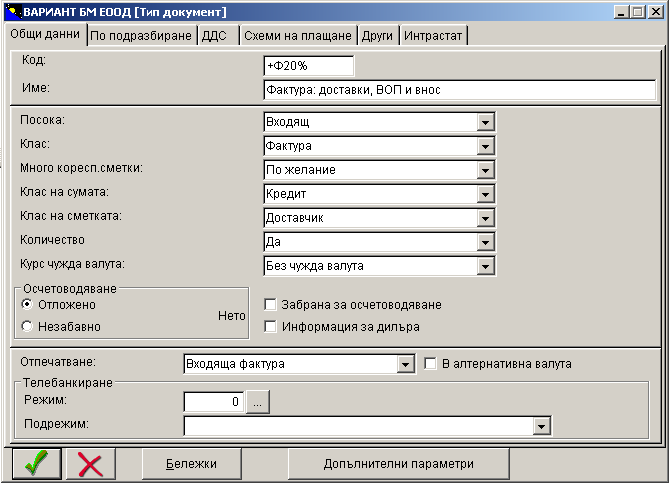
The form and numbering of invoices comply with the VAT regulations. Using the built-in document designers, you can print invoices in another form designed specifically for your company. The invoice can include excise duties and discounts on each line, and it is possible to have both excise duties and discounts for the same item. Excise duties can be indicated in the nomenclature of goods and be charged automatically.
If the client has paid in cash, Business Navigator can print a receipt on a cash register connected to the computer, as well as generate a cash receipt. We maintain contact with the most common types of cash registers in the country.
If you define price lists for goods, when invoicing it is enough to enter only the quantity of the goods, everything else is calculated automatically. There are functions for working with the price list, e.g. percentage increase or decrease in the prices of all goods or a group of goods. If the price list is in currency, the program automatically calculates the leva equivalent.
Additional information and comments can be included in the invoices.
Business Navigator follows the latest trends in work in the modern office. Electronic invoicing is the future of the paperless office and has enormous potential for increasing the efficiency of all business activities. In support of the electronic invoice exchange system developed by Bankservice AD, Business Navigator includes the creation of an export file in XML format for e-invoices.
An electronic invoice is a document signed with a valid electronic signature and is fully equivalent to the corresponding paper document. Suppliers can quickly submit invoices to their buyers electronically. Submitting invoices electronically saves a lot of time and money while being more secure than using traditional paper documents.
2. Trade centers
Trade centers
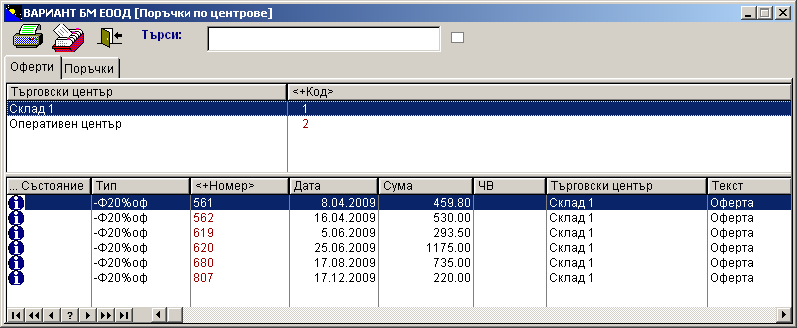
Trade centers in Business Navigator are an extension of the concept of “object”. As a trade center, the accounting accounts for warehouse and sales are logically grouped and operated from the same place. The trade center unites the accounting information for deliveries and sales of goods and allows to immediately monitor the movements and availability of items.
For each shopping center, we must specify which categories of items it handles. For each category of items in a specific shopping center, we must specify a pair of accounts: a sales account and a warehouse account. However, the warehouse account is not mandatory (for example, in the case of services, where it makes no sense to talk about a warehouse).
Sales invoicing is reported by shopping centers. Documents of the “Outgoing invoice” type can include information about a specific shopping center. In this case, Business Navigator allows you to use a table for entering invoice items, which is optimized to speed up work. Entering documents with shopping centers and items is designed for operational and quick entry of a large number of documents during sales.
At the time of entering the item, Business Navigator displays the availability of this item for the last active period. In the list of invoice items, instead of an account and batch, as is customary in accounting, items are used.
When entering invoices, a list of all items sold by this shopping center appears, sorted by name. Since the information applies only to the current trading center, the program has the ability to display the current availability of each item in the warehouse in the selection list. Availability is defined as the difference between the quantity kept in the warehouse and the sum of the sold (but not yet written off) and reserved quantities. These values are also displayed for the currently selected item. If the sales analysis has more than one characteristic, the availability of the item is calculated in total for all batches that correspond to the same item. For example, a given product for all consignors.
Working with dealers
Working with dealers and dealer groups in Business Navigator allows the reporting of sales and the availability of goods at dealers to be done automatically simultaneously with the entry of primary accounting documents.
Dealers can be grouped into groups. The basic data for the dealer also maintains information about the customers he serves. The information is automatically updated when a document with a new combination of dealer and customer is entered.
The document type can be configured for dealer-specific operations using a dedicated parameter. When entering the document, the user selects the dealer to whom the purchase or sale applies.
Dealer details are available in the document overview, with filtering options by individual dealer or dealer group.
• Dealer information is also included in the synthetic journal, where entries can be filtered by dealer or dealer group.
• The general ledger supports dealer-based views, allowing users to see all transactions performed by a specific dealer, sorted and summarized by accounts, customers, suppliers, and batches.
• From a customer’s ledger, users can view all operations related to that customer across all dealers, sorted and summarized by accounts and batches.
• The same applies to the supplier’s ledger, where transactions from all dealers are visible and grouped accordingly.
• Transactions not linked to a dealer are consolidated and marked with ***.
Orders from customers
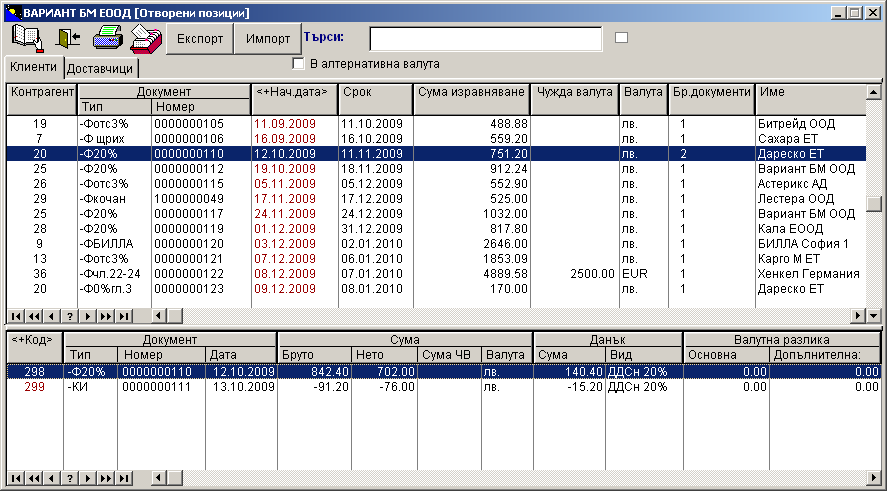
Business Navigator allows for operational monitoring of customer orders, their conversion from a quote to an order and then to an invoice, and reserving goods for orders confirmed by customers.
In the sales document type “Outgoing Invoice”, we can specify the initial state from which it starts at the moment of its creation. There are three possible initial states: quote, order and invoice.
A quote is not actually an order yet. It is a proposal to the customer, on the basis of which he can form his order. Changes can occur to it. The customer can refuse some items, reduce the quantities by others, increase them by a third, replace some items with similar ones and request new items. The items entered in the order are reserved. This means that they are present in the warehouse, but are excluded from the report on available quantities. The available quantity is calculated by subtracting the reserved quantities and the quantities that have been sold but not yet written off from the warehouse from the quantity kept in the warehouse.
Reservation occurs at the moment of confirmation of the relevant line of the document. That is, when entering the next line, the quantity from the previous line is already reserved.
When the client confirms his request, the offer (with all the amendments made to it) becomes an order and is now subject to execution. An invoice is issued for the executed order. By pressing just one button “Confirm order”, the documents are converted to the next status. The offer becomes an order, and the order becomes an invoice.
The numbering of offers and orders is different from the numbering of invoices. It is not clear whether a given offer will be confirmed and when this will happen. Therefore, it should not be assigned a number from the regular sequence of invoice numbers.
When the order becomes an invoice, the document number is changed and the invoice is automatically assigned the next regular number according to the numbering mode of the respective document type. At this point, a new open position is automatically created to track unsettled transactions. The invoice is automatically posted, and the quantities on it from reserved become sold.
Business Navigator displays reports on pending orders, which can be tracked in their current status.
The following types of reports are displayed:
- All orders;
- By customers and orders;
- By customers and items;
- By items;
- By operation centers.
Requests to suppliers
The “Requests” function includes options for defining request types in order to automate the work of entering and printing requests. Request types determine the type of request, the numbering mode, the sales center being worked with, and the method of printing the request.
Requests can be entered manually and automatically.
Manually entering requests to suppliers is easy with the predefined request types. To fill in many positions at the same time, the group entry options can be used, where the quantity that we will request is also automatically managed.
The automatic operation “Create a request to a supplier” can be called up with the button of the same name from the main work screen. Based on an outgoing invoice, quote, or order from the customer, a request to a supplier with the same content is created. Only the supplier to whom the goods ordered by the customer will be requested is selected.
The fulfillment of the requests to the supplier is automatically monitored. This function allows the invoices for the delivered goods to be linked to the requests to the suppliers. For this purpose, an automatic operation “Delivery by order” is provided when entering documents of the “Incoming invoice” type. When it is called, the items in the invoice are filled in based on the requested goods that have not yet been delivered. Business Navigator automatically monitors the fulfillment of the quantities for each individual product in the request and fills in only the difference between the requested and delivered quantities. If a product is partially delivered, only the difference will be filled in until the request is fully fulfilled.
Data on the requests can be tracked from the request entry screen. The requests are sorted according to their status on the pages “Not submitted”, “Submitted”, “Completed”, “All not submitted”, “All submitted”, “All completed” and “All”.
Unit Conversion
Business Navigator allows processing of basic and alternative units of measure of goods and items. Each item is reported separately with the basic unit of measure. From the basic unit of measure, the program converts data into an alternative unit of measure with one mouse click.
In the definition of batches and items, the ability to set an additional (alternative) unit of measure has been added. Normally, quantitative batches are kept in the units of measure specified in the relevant nomenclatures. When accounting for operations that are specified in another unit of measure, the quantities are automatically converted into the corresponding basic unit of measure of the batch. The recalculated quantity is recorded in the analytical balances and turnovers, and in the journals the quantity remains as entered in the document.
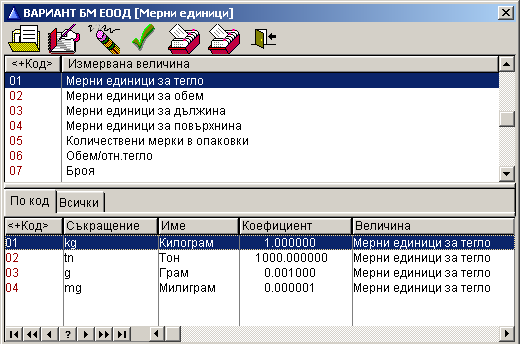
The conversion of units of measurement is done according to the table of measured quantities in the basic data, where the ratio for conversion from one unit of measurement to another is entered. In specific cases, two quantities can be taken into account (e.g. weight and humidity, volume and alcohol content, etc.).
The alternative unit of measure does not affect the accounting entries already made. It can be changed even in batches for which there are entries.
To facilitate the use of information, Business Navigator allows the quantities to be displayed in analytical reports in one of three possible ways:
- in the unit of measure in which the operation was taken (current unit of measure);
- in the unit of measure in which the item is normally kept (base unit of measure;
- in the alternative unit of measure, as set in the item definition.
Alternative units of measure are set for the item, not for the nomenclature item, which allows the same nomenclature in different accounts to be considered in different units of measure. For example, in the production of alcohol, beverages that are normally kept and sold in bottles of different volumes can simultaneously be presented in liters for reporting excise duties.
This function is supported in the reports “Turnover sheet for analytical account”, “Turnover sheet for item by period”, “Analytical journal for account” and “Analytical journal of taxes and discounts”. In turnover sheets, the choice is between base and alternative units of measure.
Taxes and discounts
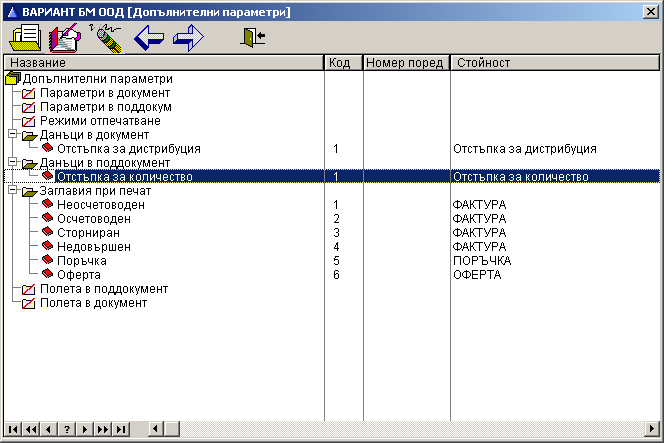
The functions of Business Navigator for working with taxes and discounts allow for setting both excise duty and discount for a given product or for combining several types of discounts for the same product. These functions would allow for maintaining different VAT rates for different goods, if such a change in the law occurs, as is the case in many countries of the European Community.
They are especially important for commercial companies that work with many types of discounts in various advertising campaigns: percentage, quantity, sales volume, chain, etc. In addition to the standard types of taxes: percentage, quantity and fixed, a new type of tax with a variable rate has been added. This is a percentage tax, in which the rate is set when entering the document. If the rate is set in the tax, it is used as a default value, which the operator can then change.
A group has been added to the tax definition as a parameter, which can be used for additional summaries in special tax and accrual reports. The definition of groups is done in the master data. For each category of VAT, excise duties or discounts, groups are defined separately. It is allowed to change the tax groups on the fly, even if there are already operations entered for it. The item entry screen includes a table for entering an unlimited number of taxes and discounts. Values are entered directly into the table. Based on the definition of each tax, the system automatically determines which fields are editable and which are calculated. Whenever the item quantity, unit price, or total amount is changed, the entire table is recalculated automatically
For each document type, a list of taxes and discounts can be set that will be automatically included in each line of the document, and a second list of taxes and discounts that will be automatically included in the additional charges of the document itself. These lists are entered as additional parameters of the document type and are automatically used during entry.
Business Navigator allows you to enter several taxes and discounts in total for the document, e.g. VAT and a discount on the total amount of the document. Several different discounts can also be combined. A second page “Additional charges” has been added to the document item entry table, which contains a table with an unlimited number of taxes and discounts.
If excise taxes and discounts are assigned to batches or items, they are automatically included when entering invoices. Business Navigator automatically uses the tax from the batch and calculates the necessary amounts according to the algorithm for this tax. This function is convenient for specifying excise tax when invoicing excise goods as well as for including standard discounts in the price list.
Business Navigator reports for working with multiple taxes and discounts include the “Analytical journal of taxes and discounts” report. It shows the accrued taxes and/or discounts for each batch, usually excise taxes or discounts.
Automatic goods write-off
Business Navigator includes an automated operation for issuing goods from warehouse inventory.
This can be performed using the standard method of weighted average purchase price, or via the FIFO and LIFO methods.
Stock issue can be executed in two ways:
• Only if the required quantities have already been received into the warehouse;
• If the available quantity is insufficient, only up to the current stock level.
The issue mode is configured in the system’s base settings and can be adjusted during operation.
Changing the mode does not affect stock issues already performed.
When using FIFO or LIFO, warehouse analytics must also be maintained by delivery.
Due to the nature of these methods, stock is always issued up to the available quantity only.
Minimum and maximum stocks
In the integrated business management system Business Navigator, you can define the limiting parameters for monitoring the availability of inventories. In the account batches whose analytical data is of the “Inventory” type, it is possible to fill in the “Minimum stock” and “Maximum stock” fields. This way, you can monitor when the inventory of a given item has fallen below the minimum or exceeded the maximum. You can also fill in only one field to monitor only one condition.
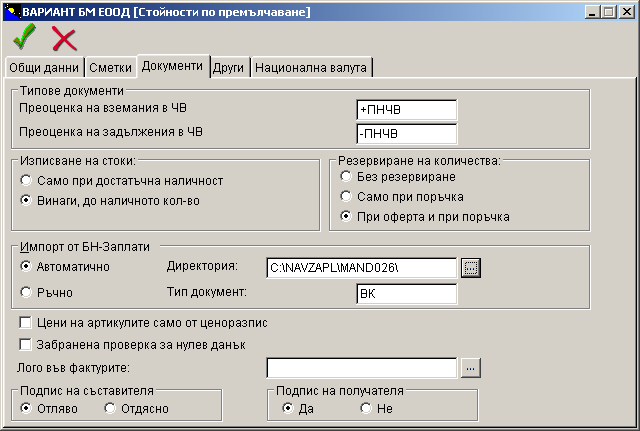
In the “Analytical Account Turnover Statement” report with the “Minimum/Maximum Stock” box, reports on the stock can be displayed according to the data entered in these fields. It is valid only for active accounts with quantitative analytical type “Material Stock” such as goods, materials or finished products. If we mark the box, we can use the additional buttons “Below the Minimum” and “Above the Maximum” to select the fulfillment of these conditions.
Defining inventory limitation parameters helps to optimize the availability of trading companies and create a more efficient organization of their work. This is very important for forming requests to suppliers and creating effective delivery schedules.
3. Production
Production
Reporting the results of the activities of an industrial enterprise is much more complex than, for example, of a trading company, since in a manufacturing enterprise a very large part of the value creation is realized by the so-called preliminary (preparatory) activities.
The integrated business management system Business Navigator considers various aspects of analyzing the costs of manufacturing enterprises and provides quantitative information for decision-making. Important functions of the program are the means for defining product bill of materials and for reporting direct costs both in the production of new products and in the development of investment projects. Key features include tools for defining product bill of materials and tracking direct costs, both in the production of new products and in the development of investment projects. Effective decisions require prior insight into the costs and potential returns associated with each product or investment. Every enterprise should establish a cost analysis framework based on expense categories, designed to deliver relevant information to management as needed.
Cost calculation
Different algorithms for cost calculation have been developed in Business Navigator.
When the planned cost of production is based on the document for the receipt of finished products in the warehouse, the program automatically calculates its cost, issues the necessary materials and semi-finished products from the warehouse and calculates the total costs.
For these calculations, the composition of the products from the bill of materials books is used. A check is also performed immediately for sufficient availability of materials in the warehouse. A message is issued for a shortage of materials.
The system allows negative stock issue during cost calculation based on product bill of materials. This option enables issuing materials from the warehouse even when the full required quantity is not available at the time of receiving the finished product. In such cases, the issued quantity is valued at the weighted average price of the actual stock on hand. The “Allowed Shortage” parameter defines the acceptable percentage of shortage relative to the required quantity for the operation to be considered successful. Permissible values range from 10% to 90%, in increments of 10%.
At the stage of reporting the actual cost price, the quantities of the materials actually used can be adjusted. Then, with the automatic operation “Correction of total costs”, the accrued total costs are redistributed in accordance with their actual total amount. Indirect costs for items that are not included in the planned cost price of the products are distributed with the operation “Distribution of total costs by analogy”. Finally, the cost price itself is adjusted with the function “Close expense account”.
The reports allow you to see the production costs, sorted by product types or by cost types, summarized or detailed. You can obtain a summarized report for each product with the costs of its production, the stock in the warehouse (or warehouses), the given consignment quantities and the sales made. There is an insightful report that compares the planned cost and the actual cost across different product types. This allows businesses to analyze cost deviations, identify inefficiencies, and refine pricing or production strategies.
Bill of Materials Definition
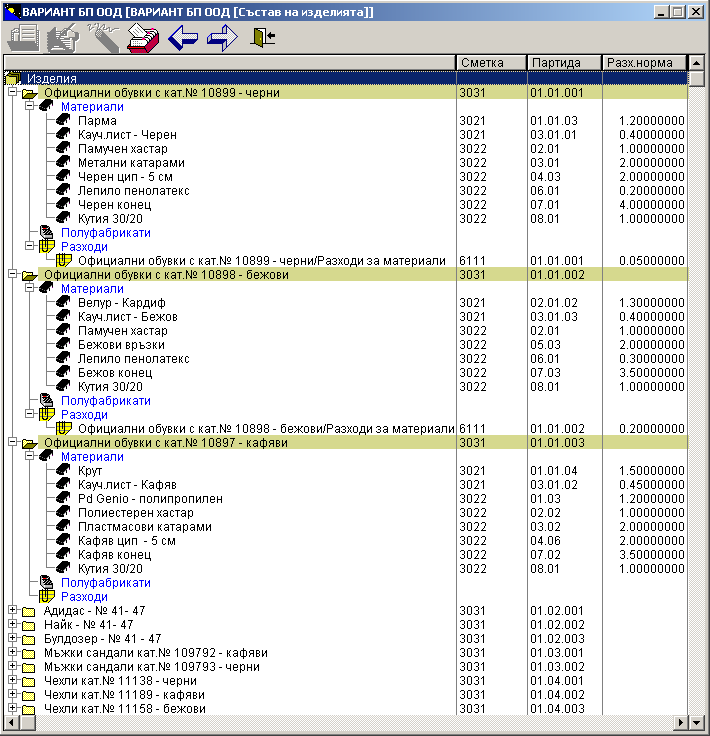
Business Navigator allows the creation of detailed bills of materials for each manufactured item. These bills of materials specify the item’s composition, including not only the quantities of raw materials used, but also the incorporated semi-finished products and the value of indirect costs. Semi-finished products may themselves contain other semi-finished components, with no limitation on nesting levels.
When defining the item composition, accounting rules (posting schemes) are also set to enable automatic cost calculation upon stock receipt.
Correction of total costs
The “Correction of total costs” function of Business Navigator allows you to correct total costs values, which at the end of the reporting period show different values from the amounts charged according to the planned cost. The program automatically calculates the percentage of the deviation based on the charged planned costs and automatically distributes the difference to the relevant products. The distribution of the differences between the planned and actual cost is based on the charged planned cost of the products.
The automatic correction of total costs is done using an automatic operation. On the screen for entering the many positions of the document, from the “Automatic operations” button, we select “Correction of total costs”. The program offers to select the type of expense to be distributed.
The program distributes the amount of the document in proportion to the amounts already charged for this type of expense for each product. The amounts charged for this type of expense are adjusted by the same percentage, determined automatically.
Allocation of common costs by analogy
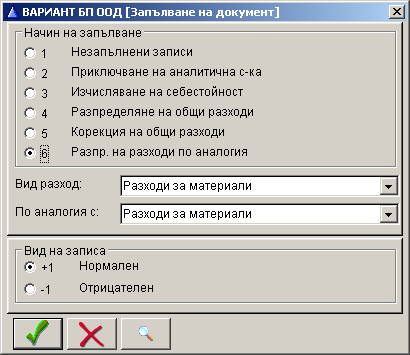
In the Business Navigator function for distributing general expenses by analogy, the expense distribution table is automatically compiled by the program based on the debit balances of another type of expense selected as an analogue. In this case, the accrual of the amount of general expenses to the direct expense accounts is again based on the debit balances, but to another type of expense. The main application of this operation is supposed to be the allocation of actual expenses to some types of expenses for which a planned cost price has not been defined.
A document with the automatic operation “Distribution of expenses by analogy” is used. The program suggests first to select the type of expense to be distributed, and then to indicate the type of expense by analogy with which the distribution will be made.
The program automatically distributes the amount of the document under the first type of expense for each item in proportion to the amounts already accrued under the second type of expense for the same item.
It is permissible for the first and second types of expense to coincide. If we choose the same type of expense as the basis, the operation will be analogous to the adjustment of total expenses, but the distribution will be based on the already accrued debit (not credit) balances of the type of expense that we are distributing.
Closing an expense account
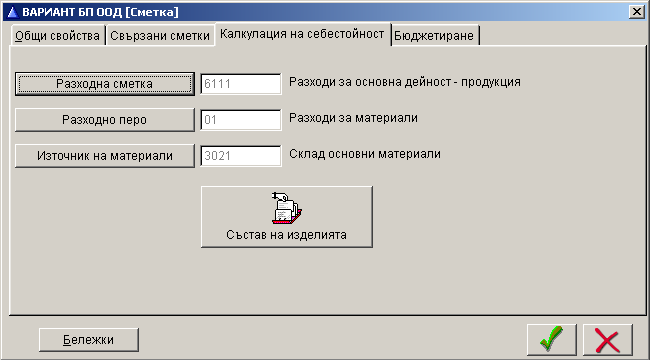
After the total costs are allocated to the production cost account with the operation “Adjustment of total costs” or “Allocation of costs by analogy”, or with direct operations, they are applied to the cost price of the corresponding product with the operation “Close cost account”. The main account is maintained by type of production, and the corresponding account by type of production and by type of costs.
To perform this function, the automatic operation is “Closing an expense account”. For each product, the debit balances of all corresponding expense items are closed. The “With negative entries” box allows you to simultaneously close the credit balances of the production expense account, and red entries will be made for them.
This function can also be used for other similar types of closing, following the same principles. The account that is closed is the corresponding account. If it is on the credit side, its debit balances are closed, and if it is on the debit side, its credit balances. If its analytical nature is quantitative, quantitative closing is also performed.
The overhead scheme of work that we would recommend for cost calculations is the following:
- Production is entered into revenue using the planned cost price according to the bill of materials.
- If necessary, corrective operations are currently taken for the difference between the actual and planned cost of materials.
- Actual costs for those items for which a planned cost is set are distributed through a general cost adjustment.
- Actual costs for those items for which a planned cost is not set (e.g. other costs) are distributed by analogy.
- The accumulated differences between actual and planned cost are included in the cost of production by closing an expense account.
Of course, the most appropriate work scheme is selected depending on the specifics of the specific production and the organization of work in the manufacturing enterprise.
4. Budget and budgeting
Budget and budgeting
The integrated business management system Business Navigator facilitates the work of budget organizations through automatic operations for budgeting at the analytical and synthetic levels and automatic comparison of the plan and the implementation of budget indicators.
Additional facilities for budget organizations are the developed and annually updated template with a built-in chart of accounts, accounts and budget indicators according to the requirements of the legislation, analytical reporting of financial indicators by paragraphs of the budget structure, as well as the automatic output of all necessary reports.
The automatic operation “Budgeting” allows entering planned values not only for budget organizations, but also by accounts or by accounts and automatic comparison of the plan and its implementation in quantitative and value terms. Business Navigator also allows quantitative reporting of the budget for each period. This is very important for planning inventories for production, for quantitative planning of sales of goods or products.
Setting the budget indicators for the account is done from the basic data. On the “Budgeting” page, the “Initialize budget” function is selected, which allows, after selecting the year, to generate one record for each period in which to fill in the budget values.
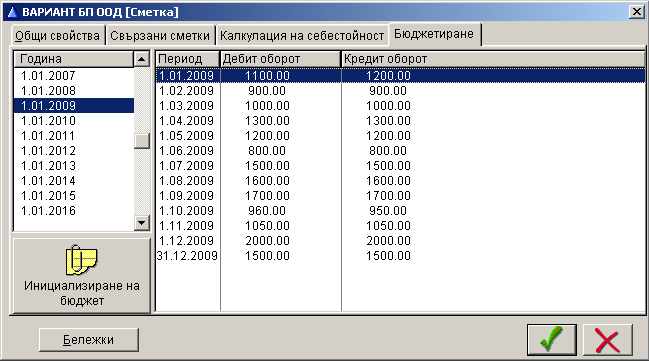
Budget reports contain information about the values and the percentage of budget execution, which are displayed in a separate menu. The reports show the values of the debit and credit of the set budget as well as the budget execution and the percentage of execution. The reports are displayed for an arbitrary interval of periods, similar to the turnover sheet for a material account. The “Filter” function allows users to generate custom extracts. The additional report “Account by periods” allows tracking the execution of the budget indicators on this account for all reporting periods.
The budgeting function at the item level allows you to monitor the implementation of budget indicators at an analytical level. The reports show the set budget, budget implementation and the percentage of its implementation in value and quantitative terms. The reports are displayed by items for any interval of periods. With the “Filter” function, you can select samples by groups, subgroups or by specific items. When printing, summaries by groups and subgroups are displayed. The “For item by period” report displays the accumulated data for all reporting periods, quantitative and value, for each selected item. The “For nomenclature by accounts” report allows you to compare the items of this nomenclature across all accounts, as well as calculate the difference between the values on different accounts.
5. Services, tourism
Services, tourism
The integrated business management system Business Navigator contains an example of companies with a subject of activity “Services”. Service companies work on projects, with all activities reported on them. The flexible capabilities of Business Navigator for setting up analytics allow projects to be formed as a list that is inserted into all analytics. Revenues, expenses, production, goods, materials and services are defined with project reporting.
In the reports, you can always track the status of the project across all accounts, as well as analyze its individual components across individual accounts. You can immediately track whether the project is successful or at a loss.
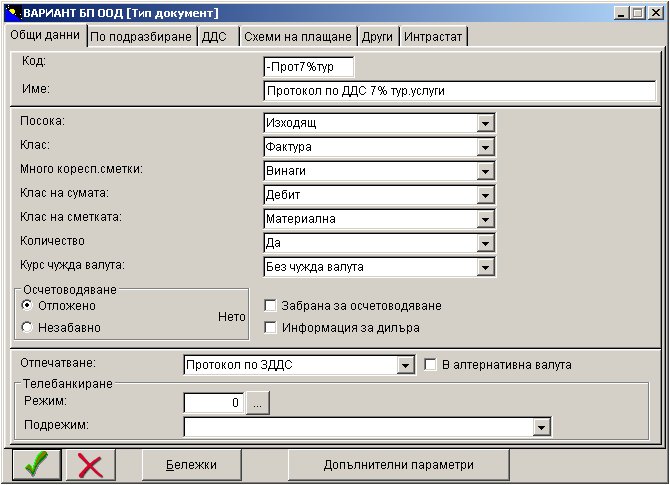
For tourism and tour operator companies, the main features are in VAT reporting. In accordance with the requirements of the VAT Act, additional functions have been developed for VAT reporting for tourism companies in Business Navigator.
For the correct reporting of supplies of general tourism services according to the VAT Implementation Regulations, documents are used - invoices and invoices' notices, which do not indicate tax. For the calculation of tax upon the occurrence of a tax event in these cases, a protocol is drawn up according to these regulations.
The tax applied to general travel service deliveries is defined during setup. The easiest way to configure it is by duplicating an existing tax entry under a new name, followed by adjusting its parameters as needed.
To process general travel service deliveries, the system requires the definition of specific document types — typically an invoice and a VAT self-assessment protocol. New document types can be created by duplicating existing templates and modifying their parameters on the relevant configuration pages. This ensures accurate VAT reporting and compliance with applicable tax regulations.
The output of VAT journals for tourism is done automatically.
6. Fixed assets and depreciation
Fixed assets and depreciation
The reporting of fixed assets in Business Navigator is developed in accordance with the requirements of international accounting standards for managing the investment policy of companies, organizations and enterprises.
Depreciation styles
Different depreciation styles allow for flexible treatment of capital investments in fixed assets, as well as comparative analysis of depreciation amounts across styles. With different depreciation styles, it is possible to report in different ways the funds invested in fixed assets, as well as to make comparisons between the depreciations accrued under different styles. The use of these styles is consistent with the financial policy of the company and the purpose of the company's investment reports.
Through depreciation styles, it is possible to analyze and compare financial indicators when using one or another depreciation method, when using different terms for individual assets, as well as different periods of depreciation accrual.
Up to 5 depreciation styles can be defined in Business Navigator. The program automatically creates two styles: accounting depreciation and tax depreciation. The goal is that the parameters of tax-deductible depreciation can be set independently and that, for example, a nonlinear method for tax-deductible depreciation can be selected.
An additional convenience in the style definition is the ability to specify default values for the depreciation of most fixed assets under this style, which are repetitive and make it easier to individually set the asset data.
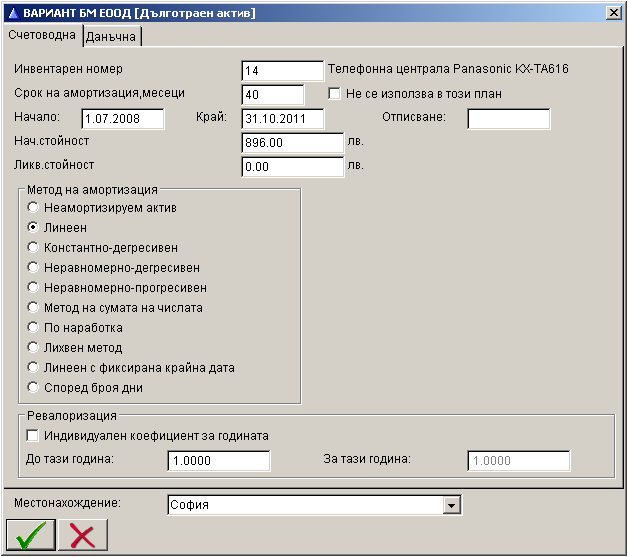
The depreciation style describes a number of important parameters, such as:
- Location nomenclature. It is selected only for the first style and applies to all styles. Here we specify which nomenclature from the list we will use as an additional parameter for the location of fixed assets.
- Whether revaluations of fixed assets are allowed under this style.
- Default method. When adding a new asset, this method will be automatically assigned to it, which saves time when entering new fixed assets.
- Default acceleration coefficient (for the constant-decreasing method).
- Interval, in months. A monthly, quarterly, semi-annual or annual interval for calculating depreciation is set. According to Bulgarian standards, the interval is monthly.
- Start in period: Same, Next. It is specified whether the depreciation of the fixed asset put into operation begins in the same period or in the period following its putting into operation. According to Bulgarian standards, depreciation must be from the next period.
- Action after the end of the useful life. It specifies what happens to a fixed asset that has reached the end of its useful life, but the accrued depreciation is not yet equal to the depreciation amount. There are several options for continuing depreciation: - Until the residual value is fully depleted, i.e. depreciation continues until the asset’s book value reaches zero; - Charging the residual value in the final period, concentrating the remaining amount at the end of the depreciation schedule; - Halting depreciation, leaving the residual value unchanged.
The parameters of the depreciation styles define the framework within which the depreciation of the relevant asset groups takes place. This saves a lot of manual operations when initially acquiring fixed assets and unifies the methods of their processing. This is especially important for the tax-recognized depreciation style, which is fixed by law.
Description of the fixed asset
The fixed asset is entered on a separate screen with the parameters of the fixed asset. Some of the parameters are common, the rest are individual for the different styles.
General parameters for the fixed asset are:
- Inventory number;
- Acquisition date;
- Commissioning date;
- Depreciation date;
- Location.
- Individually for each depreciation style of this fixed asset, you can specify:
- Depreciation period in months. From it and the style parameters, the program calculates the depreciation start and end dates.
- Initial value in the history of the fixed asset, a different initial value can be set for each year.
- Liquidation value.
- Depreciation method. All depreciation methods are supported. If the method requires it, additional information is entered for the specific parameters of the method.
- Revaluation: Individual coefficient for the year. If this box is checked, the program uses an individual coefficient for this specific fixed asset instead of the general revaluation coefficient for the fixed asset group.
The parameters of a fixed asset can be changed by year, while keeping the history of the status for the previous year. In this way, you can specify different parameters for each subsequent year. This is a very important feature when changing the depreciation methods of assets, when changing or revaluing its initial value, or when changing legislation. For example, it is normal to change the location of the asset in the following year. In principle, it is possible to change the depreciation method and/or the depreciation period.
Depreciation plan
Business Navigator displays a depreciation plan by year. The table shows only those assets for which depreciation has been calculated for the relevant year. This depends on the selected depreciation style. For different styles, this condition can be fulfilled in different ways for different assets. For each depreciation style, there is a corresponding page where you can see the depreciation plan for this style. For example, the accounting depreciation plan may differ from the tax depreciation plan.
You can also choose to sort by accounts and batch numbers, by inventory number or by fixed asset code. If more than one asset is kept under a given inventory number, the depreciation quotas are determined for the number of assets as they were at the beginning of the year, or at the initial receipt of the fixed asset, if it was acquired in the same year.
By checking the “Show all” parameter, assets with zero depreciation will also be displayed on the screen. The “Time limited” box allows you to create a plan calculated not for the entire year, but for a part of the months from the beginning of the year to the month you select.
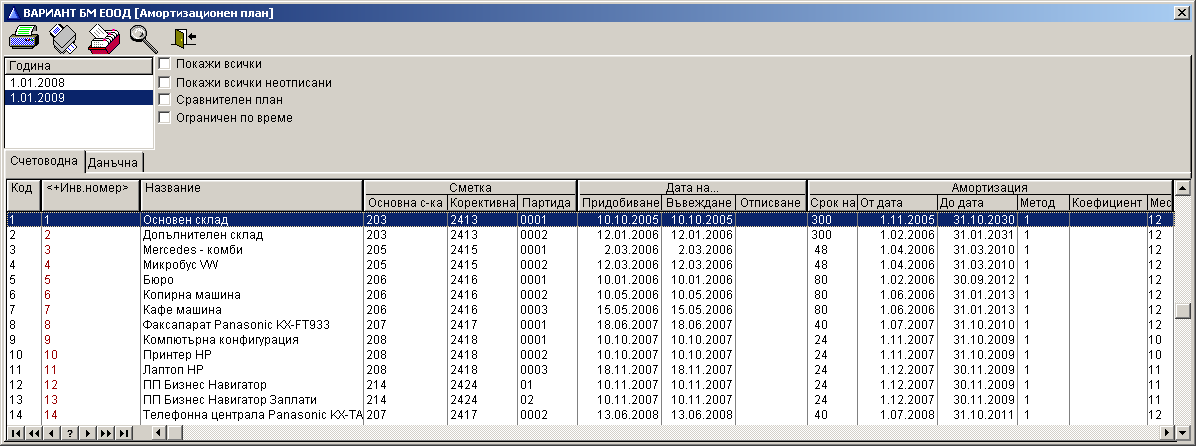
The “Comparative Plan” box allows you to compare depreciation plans compiled in two styles. The first style is the one whose page is currently selected, and the second is selected from a separate list. The comparative data is not displayed in the table, but is exported and can then be processed with the report designer, MS Excel or another external program. In the report designer, you can set other printing formats, as well as define your own depreciation plan for other styles.
Accrual of depreciation
Accrual of depreciation in Business Navigator is an automatic operation that uses a specially created for this type of document “AMOPT”. If more than one asset is kept under a given inventory number, the depreciation quotas are determined for as many numbers as there were at the beginning of the month for which depreciation is accrued. This means that if you write off part of these numbers, this will be reflected in the depreciation plan in the following year, but when the depreciation is actually accrued, it will be reflected in the month following the write-off, and the program will accrue depreciation only for the remaining assets.
The integrated business management system Business Navigator allows depreciation to be accrued by the location of fixed assets. If you use this option, the locations of all assets must be specified. For assets that do not have a specified location, the program issues an error message and does not accrue depreciation.
It is possible to switch from synthetic to analytical depreciation accrual by making the appropriate settings for automatic reconciliation of the location of fixed assets with the analyticity. If a location is not specified for a given fixed asset, the program checks whether the nomenclature of locations is not used as a second or third characteristic in the analyticity of the corresponding account. If this is the case, the location is automatically filled in by the corresponding characteristic in the batch. This check is performed when drawing up the depreciation plan.
Revaluation of fixed assets
In Business Navigator, the “Revaluation of fixed assets” function allows automatic accrual and accounting of the revaluation of fixed assets according to the coefficients set by years.
The tables with the revaluation coefficients of fixed assets and inventories are individual for each company. They are set by years. The revalued values of assets are automatically calculated in the depreciation plan. The calculation of revaluations and their accounting is done with an automatic operation.
7. Automatic VAT reporting
Automatic VAT reporting
VAT reporting with Business Navigator is fully automated, which allows to maximally ease the work of accountants and increase the efficiency of their work. This is made possible thanks to the adopted approach to set all the necessary parameters for reporting VAT taxes, accounting accounts, operations in the Master data of the program. They are linked to the document types used for VAT accounting - such as invoices, debit and credit notes, Intra-Community Acquisition protocols (ICA), VAT protocols, and goods-cash reports. The operator only needs to enter the source documents; the system automatically generates all reports and statements required by tax legislation, including the purchase ledger, sales ledger, VAT return, and the XML files for submitting the VAT ledgers and declaration via the National Revenue Agency (NRA) portal.
Thanks to the document-oriented worflow to work and automatic posting in Business Navigator, it is not necessary to specify the accounting accounts used for VAT reporting when entering the document. The program has the principle of automatic posting to these accounts. Upon posting a document - such as an invoice - the accounting entries are generated automatically and recorded across all journals. Each document is immediately reflected in the balances and turnovers on the accounts for the current and all subsequent periods.
Business Navigator enables you to submit your VAT declaration by automatically generating the required VAT files, which are then attached during the submission of the VAT purchase and sales ledgers. The declaration is created automatically using the “VAT Files” button. On the displayed screen, you can enter any data from the tax declaration that does not directly derive from accounting records, such as: deductible VAT, effectively paid VAT, VAT refundable and the payment order date used to remit the tax (if any).
The reports are generated as reports that are stored for re-submission or correction, and are not compiled at the time of output. If changes are made to the documents, they will not be reflected in the already compiled declaration. New reports must be created for the same period. The old ones can also be deleted if they are no longer needed.
The Report-declaration, VAT journals and VIES declaration can be printed. Corrections can be made to the data generated in this way according to the user's needs.
From there, the data files for submission to the NRA are also compiled. When the files are created, the program issues a message stating where the files are saved. Then, this data is copied to a directory that is displayed on the screen and submitted exactly as created by the program.
Business Navigator also supports parallel workflows for cash documents, including both digital and manual formats. Users can issue and print computerized cash receipts and payment orders, while also working with pre-printed forms from receipt books.
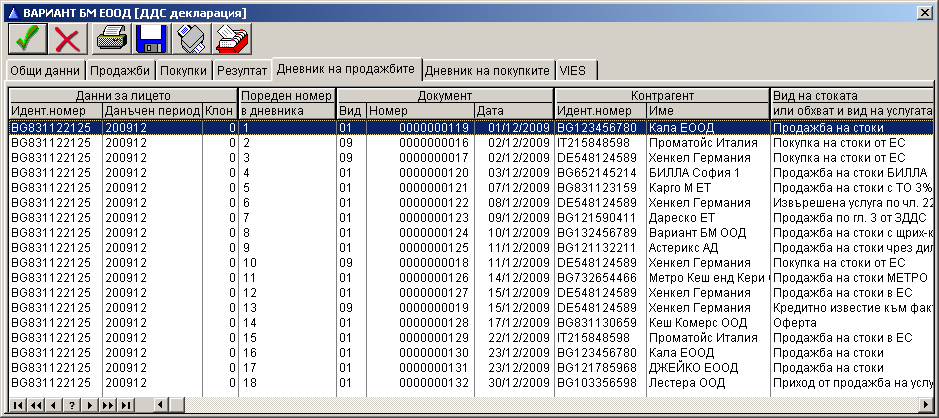
When creating a new company, it is mandatory to enter specific information required for generating the VAT file. In the “Company type” field, you must choose between the following options:
- Company without branches for those companies that do not have branches or sales offices and will not perform consolidation of VAT ledgers and files;
- Head office of a company with branches;
- Head office of a company with commercial offices;
- Branch or sales office In the branches or sales offices whose reports will be submitted to the head office for consolidation, the program offers to enter the number in a special field that is unique for each branch or sales office. The difference between a branch and a sales office is that the branch number is contained in the VAT file, but not the sales office.
Reporting the specifics of VAT in tourism for tour operator companies is processed by Business Navigator, and for this purpose it is necessary to make the appropriate settings for the types of taxes, documents and operations on which taxes are reported. VAT journals are filled in automatically, as well as data for the VAT file and the tax return.
8. Cash and bank operations
Cash and bank operations
Automatic payment by invoices
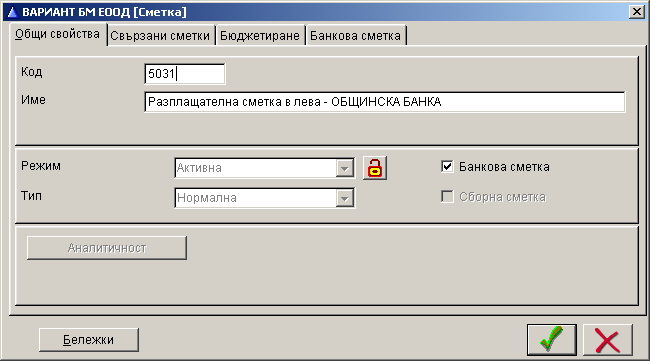
Business Navigator automatically issues payment documents to invoices under special payment schemes. Up to 2 documents can be specified in the payment schemes. These documents are created by clicking the “Automatic payment” button on the main work screen. At this point, the special payment documents are created.
Payment documents issued and printed by Business Navigator contain all the necessary details according to the requirements of the Accounting Act and accounting standards. Printing documents is related to the capabilities of the automatic operations “Invoicing”, “Printing cash documents” and “Printing bank documents”.
Payment schemes
Payment schemes in Business Navigator automatically generate payment documents when repaying receivables and payables under transactions with counterparties.
The concept of “Payment scheme” has been introduced to describe different payment scenarios. There are two categories of payment schemes: incoming and outgoing, for payment respectively on outgoing and incoming invoices.
In the definition of the document type of class “Invoice” (normally these are invoices, customs declarations, tax debit and credit notes), there is a page “Payment schemes”. This page indicates which schemes are allowed for the specific document type and which are not. For each document type, you can enable one scheme, multiple schemes, or none.
When you click the “Pay by invoice” button, the program checks which payment schemes are enabled for this document type. If only one scheme is enabled, it is executed immediately. If multiple schemes are enabled, a menu is displayed from which you can select which scheme to use in the specific case. If no scheme is enabled, no automatic payment is made.
Printing cash receipts
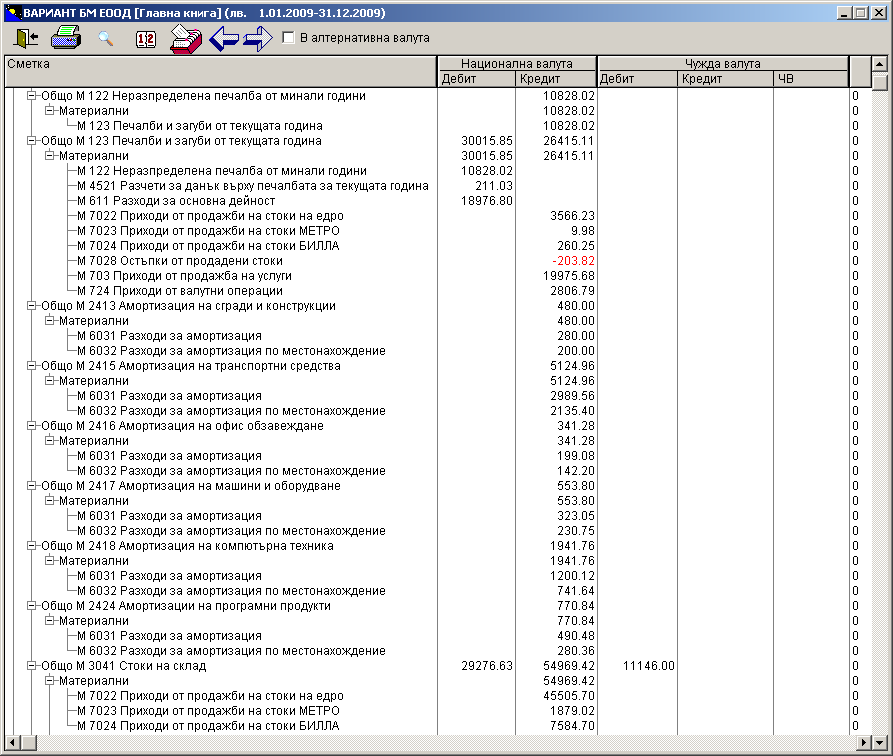
The automatic operation “Printing cash documents” of Business Navigator allows, along with entering the data for the issued revenue or expense cash orders, to also print them. The payment documents printed by Business Navigator contain all the necessary details according to the requirements of the Accountancy Act and accounting standards.
Business Navigator also supports parallel work with cash documents, i.e. issuing and printing computerized income and expense cash orders and working with those from cobs.
The built-in document designers allow each client to individually adjust the type of printed documents, embed the company logo in them, add texts and fields.
Printing bank documents
With the automatic operation “Print bank documents” of Business Navigator, payment orders, payment receipt order, direct debit documents, deposit slips and payment receipt order are printed.
The specific type of document to be printed is defined in the parameters of the document type. You can try different options by changing the way the internal document is printed according to the type of operation.
The printed documents meet the standards of banks for mandatory requisites and document layout. With the built-in document designers, a special print can also be prepared at the client's request, which contains, for example, the company logo, additional fields and parameters, etc.
Cash book with balance for each operation
In Business Navigator, you can use different variants of reports to display cash register movements. If you use the special printing button, you will be able to print the general ledger for the cash register or for the bank with data on the opening balance of the account, the turnover for each operation and the balance for each operation for each day. This report is indispensable as a cash book, and with the help of a filter, samples can be made for each day.
Incoming and outgoing payment journals
Incoming and outgoing payment journals show the movements of incoming and outgoing payments that have been made in total for the company, regardless of whether they were paid by cash or by bank transfer. They meet European standards for monitoring the company's cash flows and are indispensable when used in conjunction with the "Open positions" function.
Telebanking (electronic banking)
Business Navigator enables automatic preparation of text files for submitting payment documents entered in the program to the bank servicing the company through the "Telebanking" function. This function saves time for re-entering payment documents in the banking software and prevents errors from re-entry.
Due to the fact that there is no single standard for the format of files that are submitted to different banks, an external program nvteleb.exe has been developed in Business Navigator. It is used to create descriptions of text files as telebanking modes according to the requirements of different banks. It is possible to describe each field of the file, as well as to set links to the data entered in Business Navigator. After defining telebanking modes, Business Navigator uses these descriptions when generating text files that are submitted to the banking software. The files contain all the details of the bank payment documents and are submitted as mass payments in a ready-to-read form by the banking software. The program has a separate detailed description as support information.
For electronic banking parameters, the "Telebanking" function mainly uses the settings in the document types that have already been made for printing the payment documents. These parameters also comply with the requirements of the regulatory documents related to payments.
The processing is context-sensitive, so that only the necessary types of bank documents are processed. If the document is of the "Outgoing" type, "Payment" or "Prepayment" class, the "Payment order" value should be selected in the "Print" field in order to fill in the relevant parameters when compiling the telebanking table. For the internal payment order document type, the following types are processed, set in the "Print" field - "Budget PN Payment", "Budget PN", "PN Budget Direct Debit" and "Budget PN to APV". Accordingly, when entering these types of documents, other additional parameters for budget payment documents are filled in.
Telebanking is a function intended for payment orders. Cash documents are not included in the electronic banking table. These are, for example, documents for an expense cash order and for an import note. An import note or an import note to the budget are not processed.
9. Currency and currency differences
Currency and currency differences
The integrated business management system Business Navigator includes currency accounting with automatic accrual of the currency difference in foreign currency transactions as well as its automatic reporting as financial income or financial expense on the relevant accounts.
An unlimited number of currencies are processed, for each of which up to 6 types of exchange rates are supported for each day. Currency-related documents can utilize any of these rates during processing, such as the fixed exchange rate, the rate of the bank handling the transaction, or the customs exchange rate.
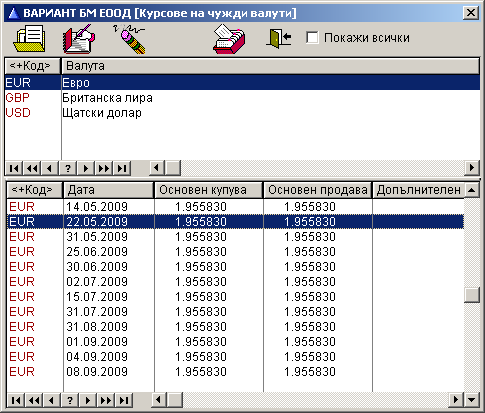
A key issue in accounting for foreign exchange transactions is the valuation of monetary assets and liabilities in foreign currency. These are cash on hand or in bank accounts, as well as receivables and payables. The valuation of monetary assets and liabilities depends on the moment of its application during the reporting period and the phase of the capital turnover cycle.
We distinguish three types of valuation according to the regulatory framework:
- Current valuation upon acquisition of monetary assets and liabilities.
- Current valuation upon consumption of monetary assets and liabilities. In this case, the currency is treated as a commodity that can be bought and sold as well as exchanged for other goods.
- Periodic revaluation according to the Accounting Act, where cash, receivables and payables are revalued at the central rate of the Bulgarian National Bank at the end of the reporting period.
Business Navigator automatically reports exchange rate differences by applying the following rules for valuation of foreign currency transactions:
- Cash in foreign currency received on accounts from group 50 is reported at the acquisition rate valid on the day of the transaction.
- Receivables and payables in foreign currency are recorded in the relevant accounts at the central rate of the Bulgarian National Bank valid on the day of their occurrence.
- To report the expenditure of funds in foreign currency, a weighted average exchange rate is applied for internal transfers on accounts or a central exchange rate for consumption of foreign currency.
- The exchange rates used when receivables and payables arise must be compared with the exchange rates at which they are paid and exchange rate differences must be determined.
Business Navigator allows automatic recalculation of all reports in an alternative currency. The alternative currency is introduced as an addition to the national currency. The main purpose of this new concept is to prepare for the transition to the euro currency. However, in the meantime, you can specify as an alternative currency any currency to which the lev has a fixed ratio and output your reports in it. On the “Alternative Currency” page, you can enter the name and abbreviation of the alternative currency, as well as a conversion conversion rate from national to alternative currency.
Entering an alternative currency does not affect the data itself, but only the output reports. Each report has a box “In alternative currency”, which allows you to switch the report from national to alternative currency and vice versa. The name of the currency used is displayed in the report title. After that, the report is printed and exported in alternative currency.
You can also print documents in alternative currency. The “In alternative currency” parameter is included in the document type definition for the printing method. If the box is checked, the document is printed simultaneously in national and alternative currency.
10. Payment tracking
Payment tracking
Working with “Open positions” and the “Payment tracking” function are extremely useful for any accounting. They are embedded in Business Navigator according to European standards, and through them the system automatically controls receivables and payables from debtors and creditors. The accountant can not only monitor the relationship with the counterparties, but also orient the company's accounting policy towards faster collection of revenues and regular repayment of debts, which is a guarantee of financial stability.
“Open position” is a concept that in Business Navigator is used to denote a “transaction”. A transaction is understood as the emergence of a relationship with a counterparty (client or supplier) related to a receivable, liability, payment or prepayment.
An open position in Business Navigator is a transaction that can be settled for a long time with different payments. The transaction can cover two types of documents: invoices and payments or prepayments. One transaction (open position) can be settled with several documents. This means that one invoice can be closed with several partial payments or several prepayments to a certain transaction can be closed with one invoice.
Open positions can be in two states:
- Active when there are still outstanding amounts to the counterparties;
- Settled when the settlements (transactions) with counterparties are fully cleared, i.e. there are no amounts to be settled.
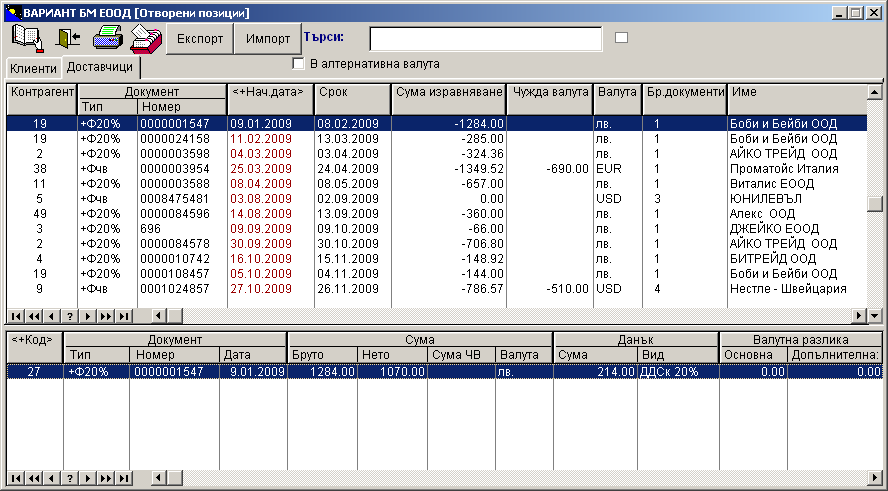
Payment tracking reports provide detailed information about settled and active open items, as well as the documents with which each transaction was concluded.
Payments with counterparties are monitored simultaneously with the entry of primary documents, invoices or payments. When entering a document of the invoice or payment type, the program automatically includes the payment tracking system. The settlement and creation of open items when entering new documents depends on the settings of the document type and may go unnoticed by the user if the display of the open item report when entering the document is turned off.
In the integrated business management system Business Navigator, working with open items allows you to monitor partially repaid receivables or liabilities. When we enter a document of the invoice type from a supplier or to a customer, it creates an open item for a certain amount. Then a payment document is entered, but only for part of the amount. You merge it with the invoice. The program immediately reports the outstanding amount for this transaction.
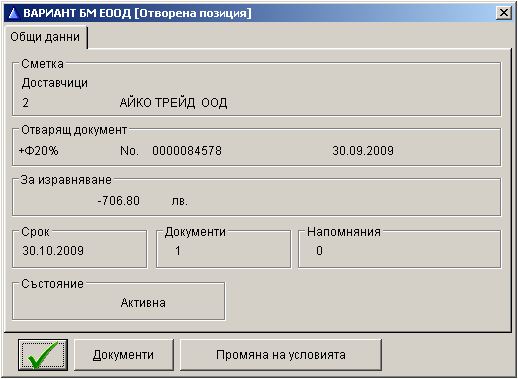
Through the payment tracking reports, the integrated company management system offers information about the real status of settlements with counterparties at any time, as well as information about the history of these transactions.
Business Navigator includes a special function for printing reminder letters to customers who are late with payments. The modes of issuing these letters describe the text of the letter, how many times to send a letter to the unpaid customer and within what period. Payment deadlines play an important role in these letters. A built-in reminder designer allows for graphic layout of the letters according to the needs of the specific company.
11. Financial Management
Financial Management
Business Navigator's template capabilities allow for the development of internal company templates with мaster data and unification of the policy of holding structures and companies with divisions. Settings are made once in the template and are distributed to all divisions, saving the work of initially defining the basic data. When summarizing data by division, folders with information are automatically imported and the inconvenience of information inconsistency due to different settings in each division is avoided.
The automatic operation “Consolidate reports” is designed for companies with divisions and complex ownership relationships. It includes automatic summarization of data from the turnover sheets of all companies for a selected period of time, without the need to enter or import primary information. The data is automatically summarized in a single company.
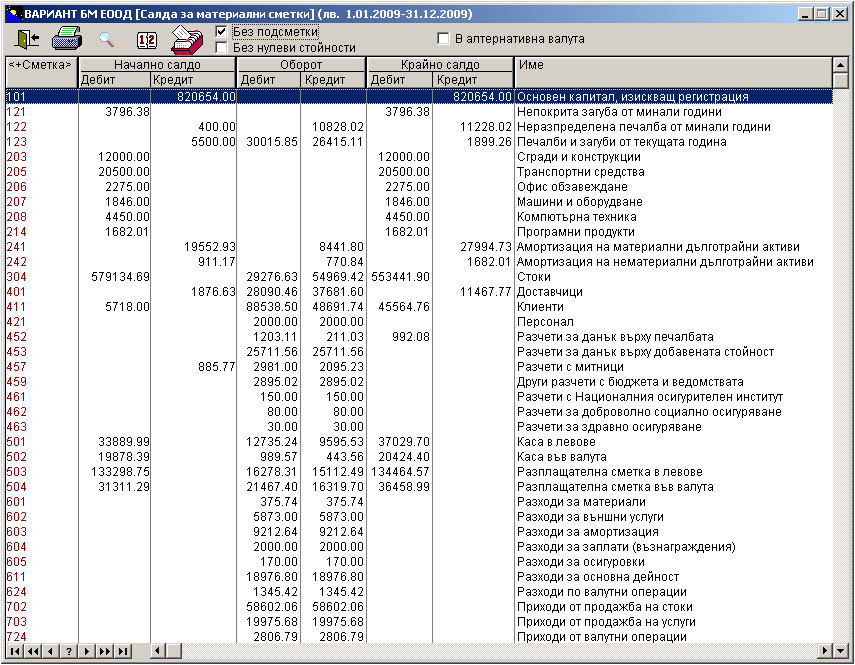
The revaluation of financial assets is performed with an automatic operation. In the definition of the analytical nature of the accounts for financial assets, an additional parameter “Specificity” has been introduced, which indicates the assets as financial. The price to which they are recalculated is indicated in the “Revaluation price” field of the specific account. The revaluation of financial assets is calculated with a document. The automatic operation “Revaluation of inventories” is called, with the “Record type Negative” field marked.
12. Document and report designers
Document and report designers
Document designer
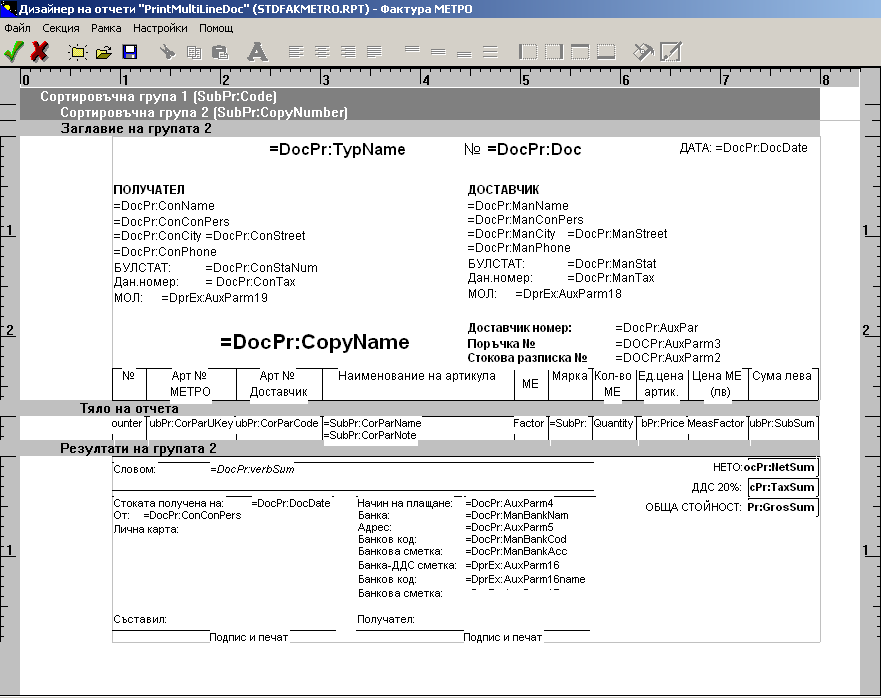
The built-in document designer of Business Navigator is an additional program that allows you to freely edit the format and content of printed documents. To use this method of printing a given type of document, you need to add a new printing mode.
Set a name for the mode, and in the “Command” field enter DOCVIEW.EXE. Create a document of the specified type and select special printing in the newly created mode. This will take you to the designer, where you can create a new printing form or modify an existing one.
After you have finished setting up the printing form, in the “Command” field after DOCVIEW.EXE add the name of the file in which you saved the new printing form. With this parameter, the program starts in printing mode and the document is printed without going through the menu.
The Business Navigator templates include document types that are characterized by the possibility of special printing. These are documents for memorial orders, for the transfer of goods on consignment and payment orders for payments of amounts to the budget. Also, a special printing mode has been added to already existing types of documents for calculating depreciation, for revaluation of foreign currency, for revaluation of fixed assets, for annual closing of budget revenues and expenses, etc.
"Special print” button of documents is done by selecting the “Special printing” icon from the menu. Different printing forms may be included for one document depending on its use.
Some typical documents have been made with the document designer and the corresponding forms are included in the Document directory. To create a custom document, you can use an existing standard template and modify it as needed. We recommend saving the new document under a new name and working with the copy. When reinstalling the program, the standard document files are replaced, so if you use the same name, you will lose the changes you made.
Report Designer
You can call up the built-in Business Navigator report designer by entering the relevant report. Press the “Export” button and select “Report Designer”. The program starts in editing mode. From the menu, select “Designer”. Position yourself on the desired report type. You can add a new form or change and save an existing form under a new name.
After you finish designing, exit the report designer. Select “Export Other User Modes”. Add a new mode. In the “Report Name” field, write the name of the file in which you saved the new report form. With this parameter, the program starts in print mode and will print the report. In the “Command Line” field, write REPVIEW.EXE. If you leave the field blank, the program uses REPVIEW.EXE by default. In the “File Name” field, write the name of the intermediate file that will contain the report data. If you leave the name blank, the program will automatically use a service name.
Most of the standard reports of Business Navigator are repeated with the report designer and the corresponding forms are included in the Reports directory. To make your own report, you can take the corresponding standard report and only change it if, of course, there is enough similarity between them.
13. Report Generator
Report Generator
In Business Navigator, accounting reports are defined as classifications using the report generator. In this case, you define not only a list of all accounts arranged in a certain way, but also the hierarchy of individual groups in the report. Thus, it is not a problem to define the balance sheet or other type of accounting report that you currently need, according to the individual characteristics of your company.
The standard reports of balance sheet, income statement, VAT tax return, cash flow statement, equity statement are defined in the Business Navigator templates. These reports are mandatory for accounting and are used when closing accounting periods as well as for displaying the system's reference information.
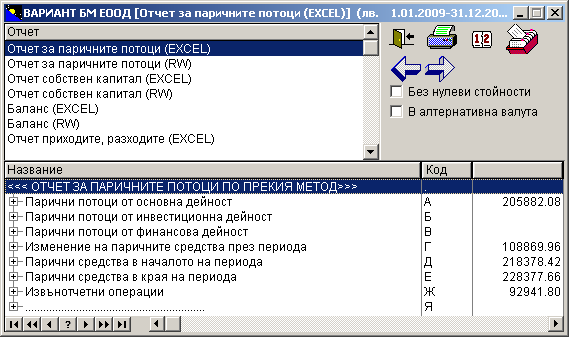
Business Navigator includes a function for importing balance sheet reports from templates in the data of the company being processed. For the correct processing of reports, measures have been taken to eliminate errors during import. If the imported report uses an account or batch that is missing from the current chart of accounts, the program issues a message, but does not stop the import. The items for which an error occurred during import remain with an unfilled account or batch number and are marked as invalid.
When trying to use a report that contains incorrect items, the program issues an error message and does not fill out the report. Before using such a report, it is necessary to make the appropriate corrections to the chart of accounts and for each incorrect item to indicate from which account or batch it should take data. Then, the “Invalid” box must be unchecked in the definition of this item.
In the report forms, you have the opportunity to enter hierarchical groups, describe the individual groups in detail and link them to the accounts from the chart of accounts, as well as describe various formulas when calculating the corresponding items of the report. The Business Navigator report generator includes a formula interpreter with standard mathematical notation.
In addition to numerical values, the report generator can also provide text values. This is convenient to use when exporting and printing the report from an external program, for example, MS Excel or Report Writer. Text values are not included in the usual printout. You can use internal variables of Business Navigator, such as company name, Company asset custodian, person authorized to submit VAT logs, etc. You can also use text constants and perform operations on strings.
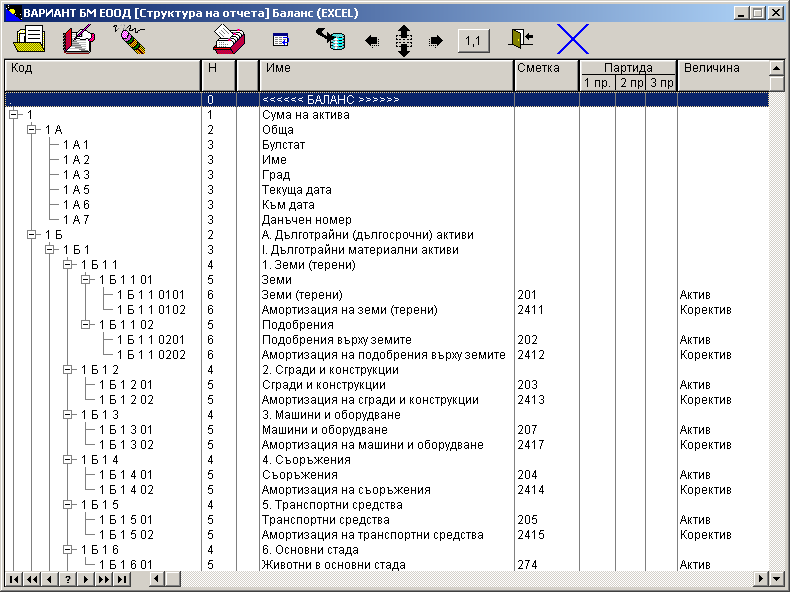
The Business Navigator report generator can also include results for a specific batch, not just for an entire account. In addition to balances and turnovers as values, debit and credit quantitative balances and turnovers can be set. For this purpose, formulas for quantities are also included when defining the reporting variables.
The latest versions of Business Navigator include new functions for working with the report generator items, which significantly simplify the work and allow each accountant to customize the report forms themselves.
- When changing the code of a given item, the code of the subordinate items is automatically changed.
- “Move” button. The selected item is moved as a subordinate to another item. In this case, both the code and the nesting level are automatically changed. In this case, all items subordinate to the selected one are automatically moved.
- “Copy” button. The selected item, together with the entire tree of its subordinate items, is copied as a subordinate to another item. In this case, both the code and the nesting level are automatically changed.
- Buttons for setting the export coordinates. Four buttons with which the export coordinates can be moved up-down and left-right. The coordinates of all subordinate items are also changed synchronously.
New formulas have been added for calculating budget indicators, such as the set budget (by debit and credit), value and quantity, and percentage budget execution. They can be used in both synthetic and analytical budgeting.
14. Data import and export
Data import and export
Data import and export in Business Navigator is an automatic operation that allows you to transfer data to remote workplaces (when working in the same company on computers that are not on a network), from one company to another, or data from a template to a specific company.
Folder import and export
This function offers the ability to transfer folders along with the documents entered in them in cases of remote workplaces or from company to company. During import and export, the requirement for data compatibility between the two companies must be observed, i.e. accounts, analytical data, nomenclatures, customer and supplier groups, document types and taxes in the company to which the import will be made, should be set up in the same way as they are set up in the company from which the export will be made.
If some of the data for customers or suppliers, nomenclature items or batches exist in the database, then they are used for the new documents, otherwise they are added automatically. The posted documents from one company are transferred to the second company in an unposted state.
The “Folders Export” menu includes three options:
- One folder exports the currently selected folder;
- Entire period exports all folders from the currently selected period;
- Selected folders offers the option to mark arbitrary folders from the currently selected period for export.
All folders are exported to the same export file. When importing, all folders from the selected export file are automatically imported.
Exporting data and reports
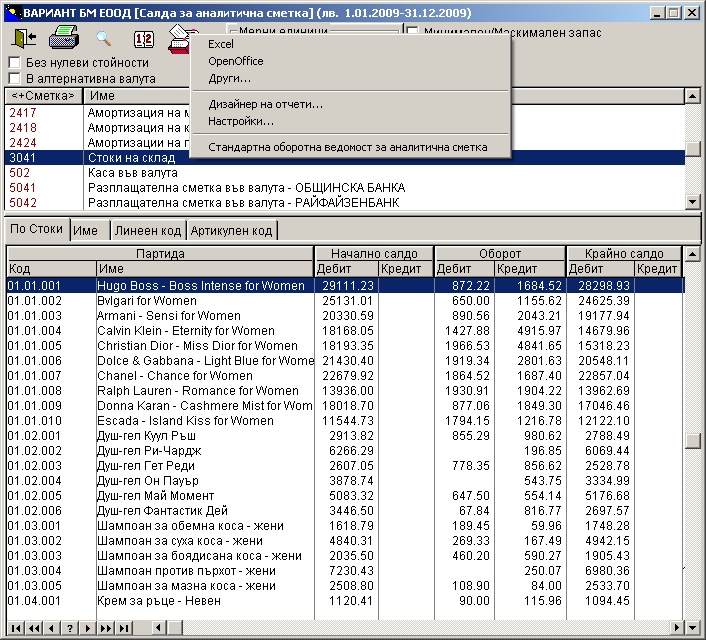
Business Navigator has two built-in export modes to MS Excel and Open Office, to which an unlimited number of custom modes can be added. When you click the “Export” button, a menu appears offering four options: “Excel”, “Open Office”, “Other” and “Settings”.
To export to MS Excel or Open Office, simply select the corresponding menu item.
To select a custom export mode, select “Other”.
If you want to add a new mode or reconfigure the export to Excel or Open Office, select “Settings”.
When defining the export modes for each field, you can also specify a formula to be calculated before exporting it. The rules for calculating formulas are the same as in the report and document designers. You can see them in the corresponding help file.
The formula can include the field itself as a variable, and the remaining fields as an array of variables. When defining the export modes, you can not only specify which fields to export and which not, but also change the order in which they are displayed. In the custom export modes, on the “Included fields” page, “Up” and “Down” buttons have been added to adjust the fields.
Input filter designer
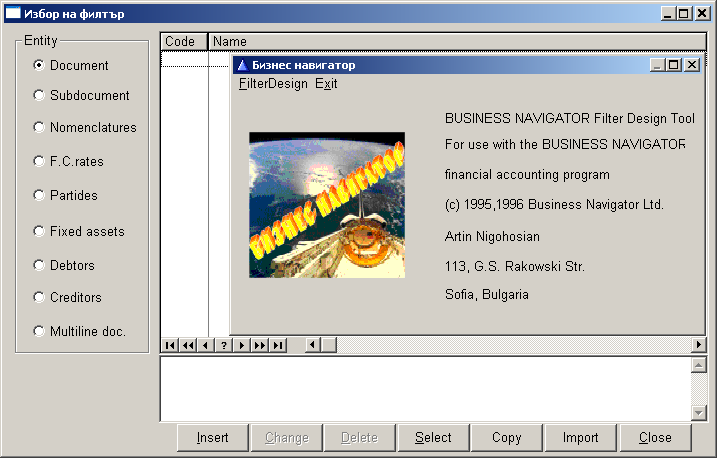
Business Navigator Import Filter Designer can be called from the Windows menu “Start, All Programs, Business Navigator, Import Filter Designer”. This is an additional program that allows you to set up data import into Business Navigator from external programs. It defines filters that describe the contents of the text file from which the data is imported and links it to each specific data field in Business Navigator.
The program is intended more for technical specialists or programmers, but in some cases accountants need to change some settings that affect their daily work.
For easier configuration, filters from other .FTR files can be imported and customized to reflect the specifics of the client or input data. This allows previously developed filters for other applications to be consolidated into a single .FTR file and modified as needed, avoiding the need to build them from scratch.
For convenience, additional information can also be included in the filter file:
- Filter comments – Each filter can include a descriptive comment for documentation purposes.
- Sample input lines per band – Multiple rows from the original input file used during development can be stored for each filter band. This improves traceability and helps track changes in input file structure during future modifications.
- Band identification formula – In addition to the standard identification string, a formula can now be used. A non-zero result indicates a match; zero means no match. The formula applies only to the first row of the band. If a formula is defined, other identification conditions are ignored.
- Open item creation logic – During document import, each band supports the following options: no open item creation, always create a new item, or attach to the last matching item. If no open item is found for the given customer or supplier, a new one is created.
- Field-level comments – Each internal field in the list can include an explanatory comment.
In the import filter designer, for each input field, in the “Formula” parameter, we can fill in an expression with a length of up to 200 characters. The expression is calculated after the pre-processing direct assignment, substitution by a mapping table or substitution with a constant.
In this expression, we can use predefined variables, arithmetic, logical and string operators and library functions.
Data from various external programs can be imported into Business Navigator. We can import the following types of data using a filter:
- Documents, for example, invoices issued by another program;
- Subdocuments, this is the analytical information for invoices or other documents. It is used when automatically entering opening balances;
- Multi-line documents, documents that include subdocuments;
- Nomenclatures;
- Batches;
- Customers;
- Suppliers.
Each client can order the creation of a filter that will cover the import of information specific to them, which will be compatible with the Business Navigator database. In some cases, this is necessary because a pre-prepared program is used and a database has already been created, which it is desirable to be able to import. This would significantly facilitate the operator's work.
15. Extras and automatic operations
Extras and automated operations
A key advantage of Business Navigator lies in its extras and automated operations. Unlike standalone modules that require manual data entry and are difficult to synchronize, extras operate directly on source documents. Processing is handled automatically by the system using dedicated algorithms. Some extras require no involvement from the accountant — they run fully automatically on a “Set and forget” basis.
Automated VAT processing
Users only need to enter primary documents - purchase and sales invoices - which are pre-coded with tax details and transaction types. The system automatically calculates VAT, posts entries to tax accounts, and populates VAT journals, the VAT declaration, and the trial balance. Data is saved to files in accordance with the latest requirements of the Ministry of Finance, with the storage location specified and the entire process executed at the click of a button. Business Navigator validates all data for potential discrepancies with legal requirements. If any errors are detected, a detailed error report is generated, and the data is saved only after all issues have been corrected.
Warehouse management with automated stock issuance
Flexible configuration options for item catalogs, warehouses, and responsible personnel. Supports multiple warehouses and storekeepers. Single-entry workflow for both accounting and inventory units. Includes price lists, invoicing, and printing of warehouse documents. Supports quantity tracking with one or two units of measure, and automatic conversion between units. Real-time inventory reports and stocktaking. Automatic stock issuance upon sale, based on weighted average cost. Monitors stock depletion and alerts when quantities fall below threshold.
Trade, marketing and Logistics Capabilities
- Flexible item coding – Supports automatic, manual, and alphanumeric coding of product positions.
- Multidimensional catalogs – Up to four classification dimensions, with combinations of two attributes, each supporting four hierarchical levels.
- Unlimited warehouse support – Manage multiple warehouses and stock locations without restriction.
- Unit conversion – Automatic recalculation of quantities between different units of measure using conversion coefficients.
- Advanced inventory tracking – Supports one, two, or two independent quantity fields for complex cases (e.g., tracking both units and weight, or attributes like fat content, sugar level, dust percentage).
- Automated cost allocation – Distributes shared expenses across item values based on supplier invoice data.
- Real-time stock monitoring – Tracks inventory by warehouse and item group, with profit analysis per item.
- Receivables and payables management – Monitors payments in BGN and foreign currencies, by due date, with automated dunning letters for overdue clients.
- Automated stock issuance – Automatically deducts sold quantities from inventory using weighted average cost.
- Revaluation and reappraisal – Supports inventory revaluation and value adjustments.
- Unlimited price lists – Maintain multiple price lists in BGN and foreign currencies.
Fixed assets and depreciation
Depreciation plan by all methods. Tax-recognized depreciation and correction coefficients for revaluations. Automatic accrual for each fixed asset. Automatic revaluation of assets.
Revaluation of inventories and foreign currencies
Automatic revaluations against the weighted average price of each item and currency. Monthly or daily revaluation of currencies. Revaluation of receivables and payables in foreign currency.
Cost calculations
Supports cost breakdowns based on planned budgets or actual incurred expenses.. Automatic allocation of total costs.
Production
- Distributes shared costs across products and production batches.
- Materials, finished goods, and semi-finished products are recorded as inventory items with options for revaluation and cost accumulation.
- Calculates variances between normative and actual costs per item and semi-finished product.
- Provides detailed breakdowns of consumed quantities by product type.
- Automatic allocation of shared costs across product cost.
Invoicing
Printing of invoices, single or multi-line, with the possibility of including discounts, surcharges, charges or taxes in a separate column. Numbering of invoices according to the requirements of the regulatory framework.
Printing of cash and bank documents
Printing of income and expense cash orders. Printing of payment orders, import notes, order-receipts, etc.
Document formatting for external print system
Documents can be formatted according to individual client specifications. Designers allow them to be formatted on request and with the client's design, for example invoices for Metro.
Currency differences
Automatic calculation of currency differences when spending currency and on foreign trade transactions based to the weighted average exchange rates. Automatic posting of amounts to income or expense accounts related to foreign currency operations..
Data import and export
Flexible input filter configuration for data import, enabling integration via text files from any type of external software. Automatic import and reconciliation of data from remote workstations. Import and export of entire folders, including all contained documents, between remote workstations or across companies.
Data export to MS EXCEL for Windows
Data export to MS EXCEL for Windows. All reports and some nomenclatures and basic data are automatically exported to MS EXCEL for Windows.
Balance Consolidation
Balance consolidation for companies with subsidiaries and complex ownership structures. Automatic aggregation of data from the trial balances of all companies for a selected period, without the need to enter or import primary accounting information. The consolidated data is automatically compiled within a separate company entity.
Fiscal Device Integration
Automatic printing of fiscal receipts. Supported fiscal device models include: Datecs Sofia, Samsung ER 250, Datecs MP 500, Datecs MP 500T, Orgtechnica Silistra, ELKA 752, ELKA 952, ELKA 852.02, ELKA 803, ELKA 853, ISL Sofia, ISL 1000 and ISL 2000.
Data Transfer via Internet
Business Navigator enables sending exported data from document folders directly via email.
Multi-Currency Support
Business Navigator supports operations in an unlimited number of currencies, with up to six exchange rate types per day. It includes foreign currency accounts, tracking of receivables and payables in foreign currencies, and cross-currency accounting with automatic recalculation of reports based on the exchange rate for each transaction. Foreign exchange differences are recorded automatically, along with automatic revaluation of foreign currencies and currency-based receivables and payables.
Multilingual Support
Simultaneous operation in six languages: Bulgarian, Russian, German, English, Italian, and French. Dynamic language switching during runtime. Built-in translation module with a user-friendly interface for adding additional languages.
Cross-Standard Accounting
A dedicated feature for multinational companies enabling parallel accounting in accordance with Bulgarian and various international standards.
16. Innovations
Innovations
Functionality Expansion
Business Navigator evolves continuously based on client feedback. Each new version includes enhanced capabilities, new features, and automated operations. Custom modules are not developed for individual clients; instead, reasonable improvements based on user suggestions are incorporated as standard features at no additional cost, included in the product’s standard price.
Flexible configuration options do not necessarily require changing the program in the event of a change in legislation. Users themselves configure accounts, analytics, taxes, document lists, automatic posting and automatic operations. Ability to work simultaneously with different accounting standards with simultaneous reporting and in different types of currencies.
The program includes а report generator with a formula interpreter and the ability to create any reports according to Bulgarian or foreign standards.
Business Navigator is flexible in terms of connections from external programs and receiving information from remote workstations. The program for defining filters for importing data from a text file is adjusted to the formats of any other programs. Folders with complete information from remote workplaces are imported and with automatic coordination of nomenclatures. Data from all reports are exported to MS Excel. Exported data can be automatically transmitted by e-mail. There is a possibility of transferring data from company to company.
A direct automatic connection with cash registers or fiscal printers of the Datecs, ELKA and ISL type has been implemented. Receipts are automatically printed.
There is a possibility of formatting documents for printing with external programs, with the design of the document being at the client's request.